

Overview
Connect Linear to turn Helpdesk tickets into Linear issues. When a ticket needs work from another team, such as a bug report or a feature request, the AI drafts the issue from the ticket for you, so your team doesn’t have to rewrite it by hand.Before you start
- A Chatbase AI agent with the Helpdesk
- A Linear workspace you can grant access to
Linear needs a plan that includes the Helpdesk. It is not available on HIPAA-compliant accounts: the Connect button stays disabled there.
Connect Linear
1
Open Integrations
Go to your Chatbase dashboard and select your AI agent. Click Integrations in the sidebar.
2
Grant access to Linear
Click Connect on the Linear card, then grant Chatbase access to your Linear workspace.
Create or link an issue from a ticket
Open a ticket in the Helpdesk and find the Linear Issues section in the ticket’s Details panel.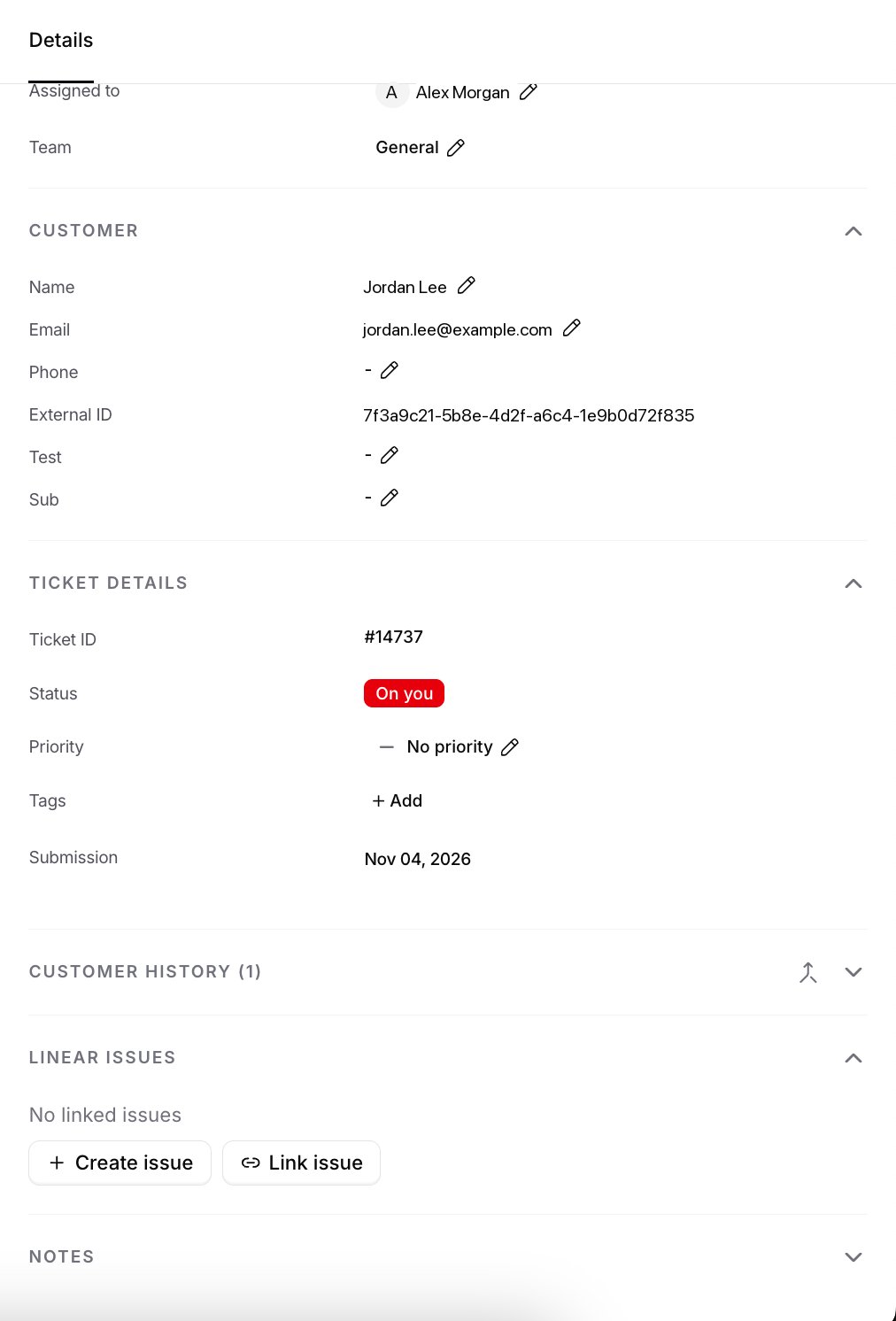
- Create issue: The AI drafts a new Linear issue from the ticket, following your draft settings.
- Link issue: Link the ticket to an issue that already exists in Linear.
Create an issue
- Click Create issue. Chatbase reads the conversation and drafts a title and description. Click Skip to write it yourself instead.
- Choose a Team and a Priority, and edit the Title and Description.
- Click Create issue.
Chatbase ticket #<number>: <link>, and attaches a Chatbase ticket #<number> link to the issue so your engineers can get back to the ticket.
If the issue is created but can’t be linked to the ticket, you see a message saying so. Use Link issue to attach it rather than creating it again, or you’ll end up with a duplicate in Linear.
Link an existing issue
- Click Link issue.
- Type part of the title, an issue ID like
ENG-123, or paste the issue’s Linear URL. - Click the issue in the results.
Linked issues on the ticket
Each linked issue shows its ID, title, status, and assignee. The status is read from Linear each time you open the ticket. Changes in Linear don’t post anything to the ticket or change its status. When you create, link, or unlink an issue, Chatbase adds a system note to the ticket thread, for exampleJane Doe created ENG-123: Checkout button does nothing.
To remove an issue, click the Unlink icon on its row. This only removes the link in Chatbase. The issue and its link back to the ticket stay in Linear.
Draft settings
Draft settings control how the AI writes a Linear issue from a ticket. Click Draft settings on the Linear card to change them. You can also open them from the gear icon in the Create Linear issue dialog.- Language: The language the issue is written in. The default is English.
- Writing instructions: How the AI should write the issue description, up to 4,000 characters. Click Reset to default to go back to the default instructions.
Click Save to apply your changes. The settings apply to everyone drafting issues for this AI agent.
The draft reads the most recent part of the conversation, not the whole history, so check long tickets for details it missed.
Disconnect Linear
To disconnect, click the ••• menu on the Linear card. Links made before you disconnect are kept. The Linear Issues section is hidden until you connect Linear again, and then the links come back.Troubleshooting
Linear access was revoked
Linear access was revoked
If someone removes the Chatbase app in Linear or its access expires, the card shows Linear access was revoked and a Reconnect button. Click it and approve access again. Your draft settings are kept.