

Overview
The Freshchat live chat Action hands a conversation over from your AI agent to a human agent in Freshchat. The customer keeps chatting in the same window, and your team replies from Freshchat in real time.Best for:
Urgent or sensitive issues that need a person right away, such as billing disputes, account problems, or frustrated customers.
Prerequisite: Before using this Action, connect Freshchat under Integrations.
How to create the Action
1
Navigate to Actions
Go to your Chatbase dashboard and select your AI agent. Click Build > Actions in the left sidebar.
2
Create the Action
Click Create Action, then select Freshchat live chat. It’s listed under the Live chat type.
3
Configure general settings
Action name: A unique, descriptive name for the Action.When to use: Instructions for when the AI agent should hand the conversation over. For example: “Use when the customer asks to speak to a human, or when you can’t resolve a billing or account issue.”Satisfaction survey: Check Ask the user to rate the chat after the agent resolves it to send a survey when the chat ends. It’s off by default. See Satisfaction survey.
4
Choose channels
Use Channels to control where the Action is available, then click Save. Freshchat live chat works on Chat Bubble, Help Page, and Center Stage only. Any other channel is incompatible and can’t be selected. See Channels for details.
5
Enable and test
Make sure the Action is toggled to Enabled. Then ask your AI agent to speak to a human, and confirm the conversation reaches a live agent in Freshchat.
Satisfaction survey
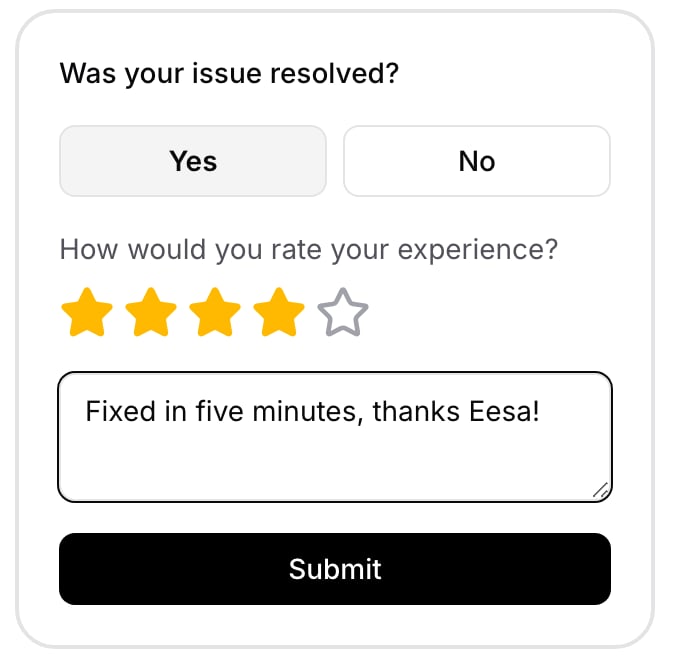
When the survey is on and a Freshchat agent resolves the chat, the customer sees a short survey in the chat window:- Was your issue resolved? Yes or No.
- If they answer Yes, they rate the experience from 1 to 5 stars.
- They can add an optional comment, then click Submit.

If answers don’t appear in Freshchat’s CSAT reports, your API key may not allow it. Generate a new API key in Freshchat, then reconnect the integration.
Next steps
Freshchat integration
Connect or manage your Freshchat account.
Escalations
Open a ticket instead when the issue doesn’t need a live agent.